
Android widget guide
Android crypto price widgets
Follow a crypto pair's price on your Android home screen with a TabGreater widget.
Choose one exchange and pair for each widget, customise its appearance, then set how often it refreshes in the app's WIDGETS settings.
Get TabGreater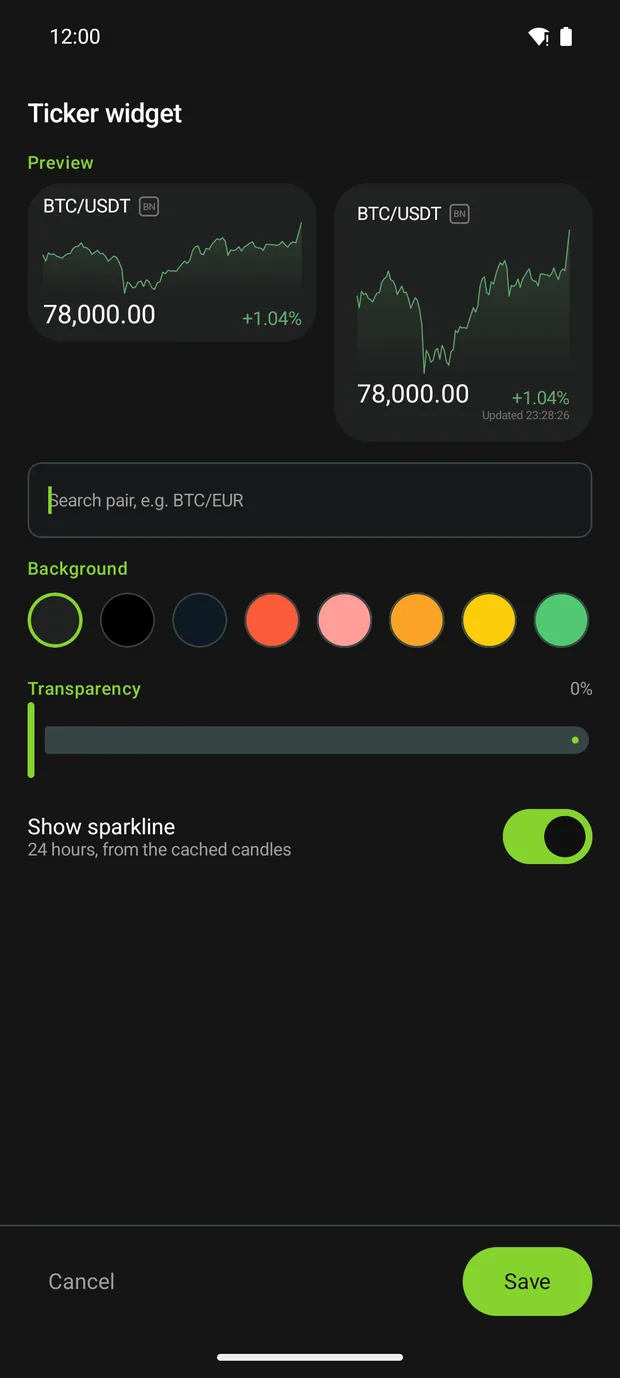
Check the widget preview before saving your pair and appearance settings.
Set up
Add a widget and choose a pair
Each TabGreater widget shows one market pair. Configure it after placing it on your home screen; your launcher may also offer a way to reopen setup later.
- Open your Android launcher's widget picker, find TabGreater and add its widget to your home screen. The gesture and menu labels vary between launchers; the widget starts at 2 × 1 and can be resized after placement. If setup does not open automatically, tap Tap to configure on the new widget.
- In the setup screen, search for a crypto pair such as BTC/EUR, then select the result for the exchange you want.
- Check the preview and tap Save. Add another TabGreater widget if you want a different pair on your home screen.
Appearance
Make the widget fit your screen
The setup preview updates as you change the widget. Choose a background colour, adjust its transparency and switch the 24-hour sparkline on or off. The sparkline is on by default and uses cached candles.
You can resize the widget with your launcher after saving it. Each widget has its own pair, background, transparency and sparkline settings.
Refresh
Choose how often widgets refresh
In TabGreater, open Settings → WIDGETS → Widget refresh. This setting applies to your widgets; the default is Every 5 minutes (Recommended).
- Live
- Every minute
- Every 2 minutes
- Every 5 minutes · Recommended
- Every 15 minutes
With a timed option, the app briefly connects to check prices at your chosen interval. Live keeps a connection open while the screen is on, if your network and power settings allow it. With the default Live only on Wi-Fi option, the app uses brief requests over mobile data instead of keeping that connection open.
When the screen is off
Live closes its connection and falls back to a brief price check every five minutes. Android can still delay background work, so refreshes may not happen at the exact interval you select.
Background updates
Service notices and battery settings
TabGreater has no price alerts and does not ask for notification permission. Widget updates use an Android foreground service, which requires an ongoing service notification. The system controls how it appears: on Android 13 and later, the service can remain listed in Task Manager even when its notification is not in the notification shade; on Android 12 and earlier, it may appear in the notification shade.
Battery use depends on the refresh interval, device and network conditions. Less frequent updates can reduce background activity; there is no single battery-use figure that applies to every phone or connection.
If a widget stops updating
Open TabGreater and go to Settings → WIDGETS → Battery optimisation. Follow your phone's instructions to allow unrestricted background use. On Samsung One UI, use the in-app battery checklist for the additional system settings.
The available controls differ by phone manufacturer and Android version. For Samsung instructions and more help with widgets, see the FAQ.
Want to try TabGreater?
See the available Android installation options, or read how the app handles network data and privacy.